
大家好,欢迎来到IT知识分享网。
MkDocs是一个快速、简单、华丽的静态网站生成器,适用于构建项目文档。文档源文件以Markdown编写,并使用一个YAML文件来进行配置。 MkDocs生成完全静态的HTML网站,你可以将其部署到GitHub pages、Amzzon S3或你自己选择的其它任意地方。
MkDocs有一堆很好看的主题。 官方内置了两个主题: mkdocs 和readthedocs, 也可以从MkDocs wiki中选择第三方主题, 或者自定义主题。
开始使用Mkspeed
An introductory tutorial!
入门教程!
Installation 安装
To install MkDocs, run the following command from the command line:
要安装Mktop,请从命令行运行以下命令:
<span style="background-color:var(--bs-body-bg)"><span style="color:#dee2e6"><code class="language-bash">pip install mkdocs</code></span></span>For more details, see the Installation Guide.
有关详细信息,请参阅安装指南。
Creating a new project 创建新项目
Getting started is super easy. To create a new project, run the following command from the command line:
入门超级简单。要创建新项目,请从命令行运行以下命令:
<span style="background-color:var(--bs-body-bg)"><span style="color:#dee2e6"><code class="language-bash">mkdocs new my-project <span style="color:#ffa657">cd</span> my-project</code></span></span>Take a moment to review the initial project that has been created for you.
花一点时间来查看为您创建的初始项目。
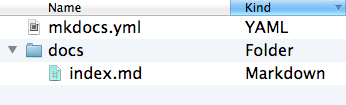
There’s a single configuration file named mkdocs.yml, and a folder named docs that will contain your documentation source files (docs is the default value for the docs_dir configuration setting). Right now the docs folder just contains a single documentation page, named index.md.
有一个名为 mkdocs.yml 的配置文件和一个名为 docs 的文件夹,其中包含文档源文件( docs 是docs_dir配置设置的默认值)。现在 docs 文件夹只包含一个文档页面,名为 index.md 。
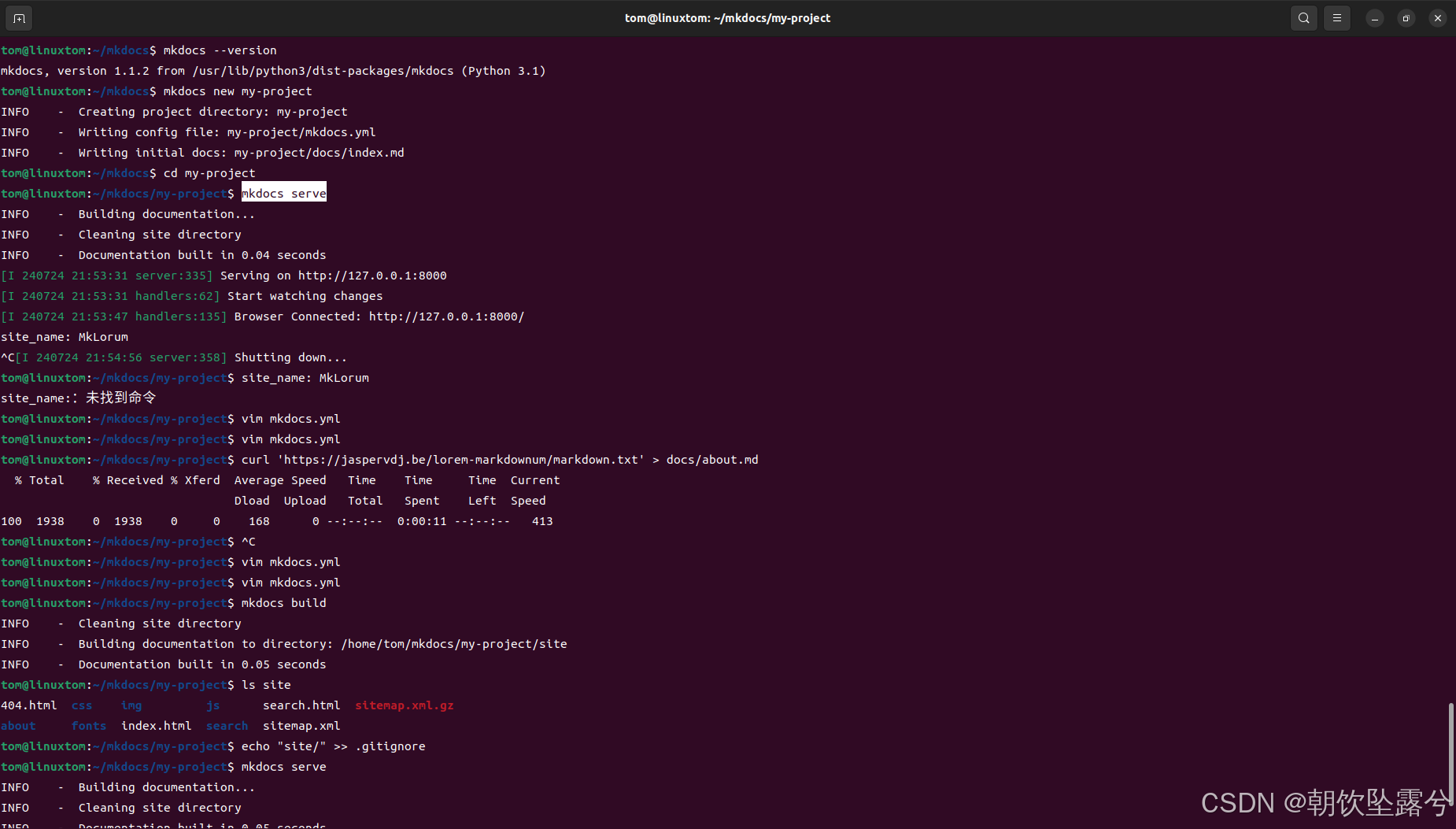
MkDocs comes with a built-in dev-server that lets you preview your documentation as you work on it. Make sure you’re in the same directory as the mkdocs.yml configuration file, and then start the server by running the mkdocs serve command:
Mkspeed自带了一个内置的dev-server,可以让你在处理文档的时候预览文档。确保你和 mkdocs.yml 配置文件在同一个目录下,然后运行 mkdocs serve 命令启动服务器:
<span style="background-color:var(--bs-body-bg)"><span style="color:#dee2e6"><div style="text-align:start"><div><div><div><div><div><div><span style="color:var(--gpts-primary-text-color)"><span style="color:rgba(0, 0, 0, 0.88)"><span style="color:var(--gpts-black-text-color1)">Explain</span></span></span></div></div><div></div><div></div></div></div></div></div></div><code class="language-console language-shell"><span style="color:#79c0ff">$ </span>mkdocs serve INFO - Building documentation... INFO - Cleaning site directory INFO - Documentation built in 0.22 seconds INFO - [15:50:43] Watching paths for changes: 'docs', 'mkdocs.yml' INFO - [15:50:43] Serving on http://127.0.0.1:8000/</code></span></span>- mkdocs.yml: 这个文件是一个配置文件主要配置你的站点名字,板块等具体配置
- docs: 是存放你要写的 Markdown 文档的地方初始化一个index.md文档配置
在本地查看搭建的文档效果,访问http://127.0.0.1:8000/就可以看到生成文档的效果了
mkdocs serve Running at: http://127.0.0.1:8000/
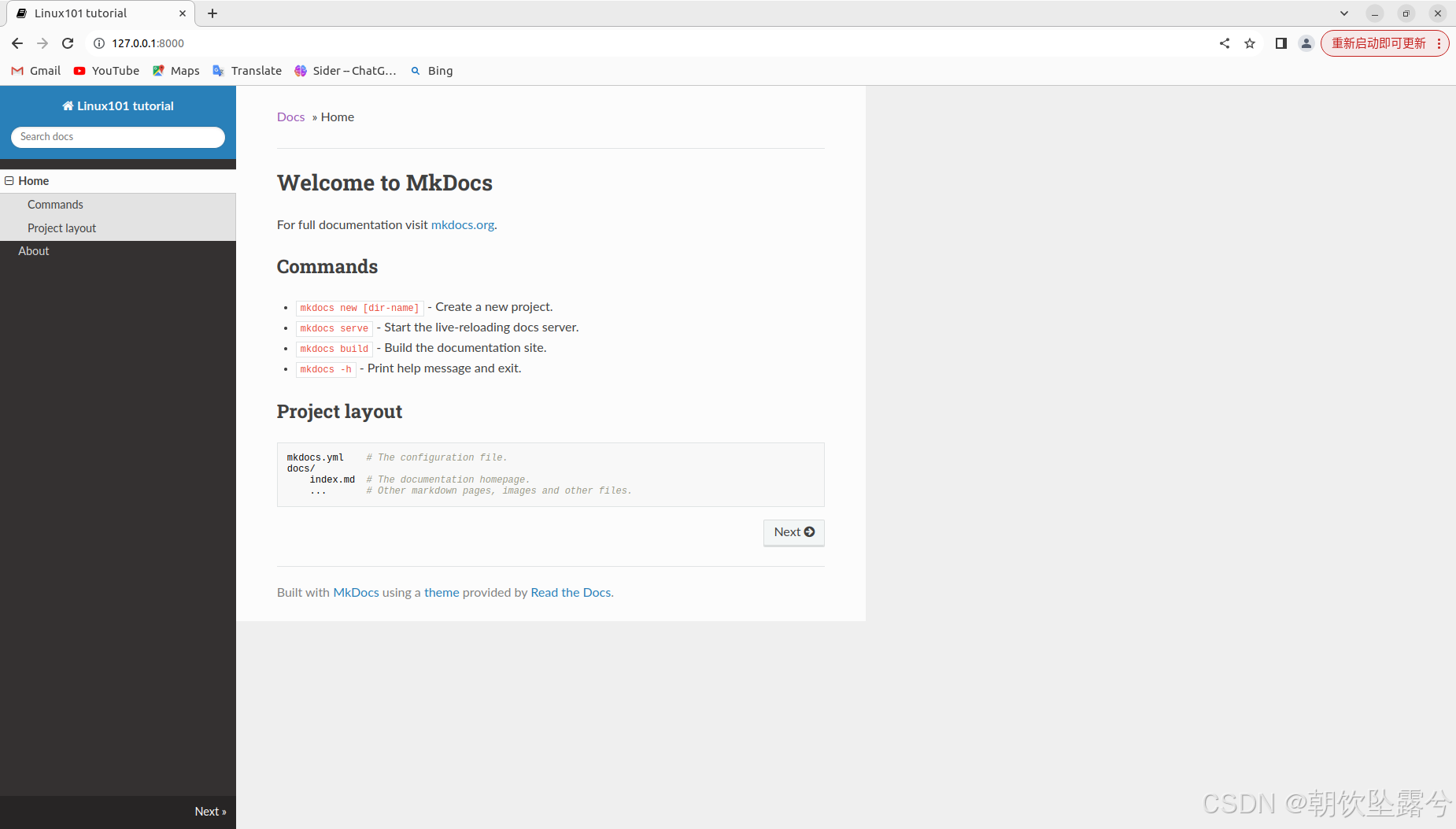
Open up http://127.0.0.1:8000/ in your browser, and you’ll see the default home page being displayed:
在浏览器中打开http://127.0.0.1:8000/,您将看到显示的默认主页:
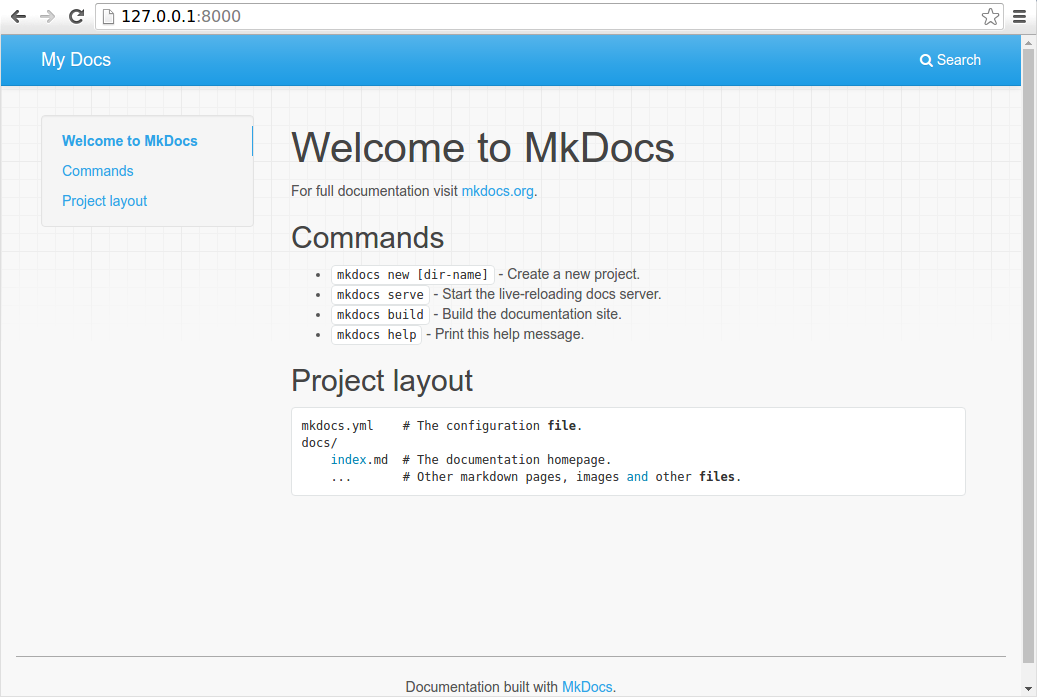
The dev-server also supports auto-reloading, and will rebuild your documentation whenever anything in the configuration file, documentation directory, or theme directory changes.
dev-server还支持自动重新加载,并在配置文件、文档目录或主题目录发生更改时重新构建文档。
Open the docs/index.md document in your text editor of choice, change the initial heading to MkLorum, and save your changes. Your browser will auto-reload and you should see your updated documentation immediately.
在您选择的文本编辑器中打开 docs/index.md 文档,将初始标题更改为 MkLorum ,然后保存更改。您的浏览器将自动重新加载,您应该立即看到更新的文档。
Now try editing the configuration file: mkdocs.yml. Change the site_name setting to MkLorum and save the file.
现在尝试编辑配置文件: mkdocs.yml 。将 site_name 设置更改为 MkLorum 并保存文件。
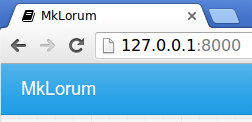
<span style="background-color:var(--bs-body-bg)"><span style="color:#dee2e6"><code class="language-yaml"><span style="color:#79c0ff">site_name:</span> <span style="color:#a5d6ff">MkLorum</span></code></span></span>Your browser should immediately reload, and you’ll see your new site name take effect.
您的浏览器应立即重新加载,您将看到新网站名称生效。
Note 注意
Adding pages 添加页面
Now add a second page to your documentation:
现在添加第二页到您的文档中:
<span style="background-color:var(--bs-body-bg)"><span style="color:#dee2e6"><code class="language-bash">curl <span style="color:#a5d6ff">'https://jaspervdj.be/lorem-markdownum/markdown.txt'</span> > docs/about.md</code></span></span>As our documentation site will include some navigation headers, you may want to edit the configuration file and add some information about the order, title, and nesting of each page in the navigation header by adding a nav setting:
由于我们的文档站点将包含一些导航标题,您可能需要编辑配置文件,并通过添加 nav 设置来添加有关导航标题中每个页面的顺序,标题和嵌套的一些信息:
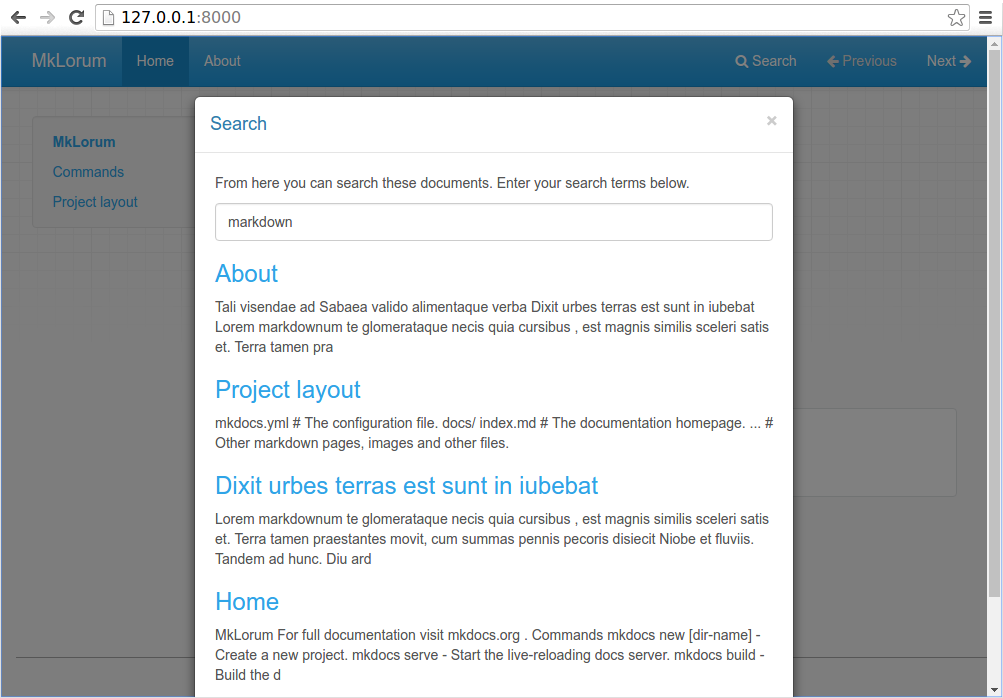
<span style="background-color:var(--bs-body-bg)"><span style="color:#dee2e6"><div style="text-align:start"><div><div><div><div><div><div><span style="color:var(--gpts-primary-text-color)"><span style="color:rgba(0, 0, 0, 0.88)"><span style="color:var(--gpts-black-text-color1)">Explain</span></span></span></div></div><div></div><div></div></div></div></div></div></div><code class="language-yaml"><span style="color:#79c0ff">site_name:</span> <span style="color:#a5d6ff">MkLorum</span> <span style="color:#79c0ff">nav:</span> <span style="color:#f2cc60">-</span> <span style="color:#79c0ff">Home:</span> <span style="color:#a5d6ff">index.md</span> <span style="color:#f2cc60">-</span> <span style="color:#79c0ff">About:</span> <span style="color:#a5d6ff">about.md</span></code></span></span>Save your changes and you’ll now see a navigation bar with Home and About items on the left as well as Search, Previous, and Next items on the right.
保存您的更改,现在您将看到一个导航栏,左侧有 Home 和 About 项,右侧有 Search 、 Previous 和 Next 项。
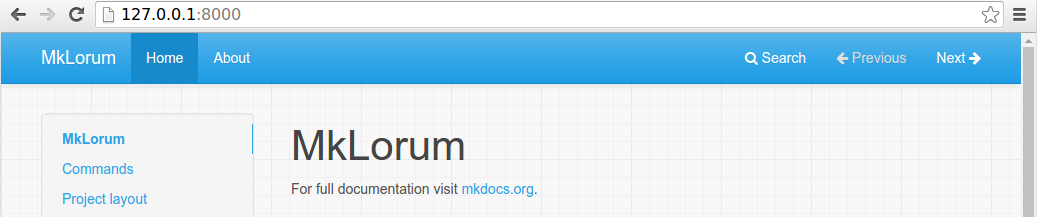
Try the menu items and navigate back and forth between pages. Then click on Search. A search dialog will appear, allowing you to search for any text on any page. Notice that the search results include every occurrence of the search term on the site and links directly to the section of the page in which the search term appears. You get all of that with no effort or configuration on your part!
尝试菜单项并在页面之间来回导航。然后点击 Search 。搜索对话框将出现,允许您搜索任何页面上的任何文本。请注意,搜索结果包括搜索词在站点上的每次出现,并直接链接到搜索词出现的页面部分。您无需任何努力或配置即可获得所有这些功能!
Theming our documentation
主题化我们的文档
Now change the configuration file to alter how the documentation is displayed by changing the theme. Edit the mkdocs.yml file and add a theme setting:
现在更改配置文件,通过更改主题来改变文档的显示方式。编辑 mkdocs.yml 文件并添加 theme 设置:
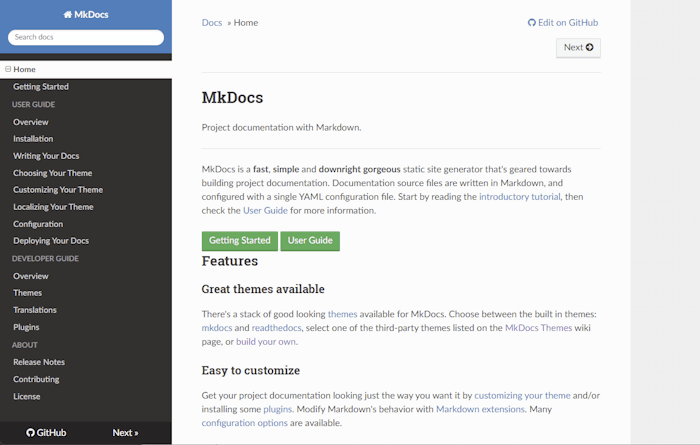
<span style="background-color:var(--bs-body-bg)"><span style="color:#dee2e6"><div style="text-align:start"><div><div><div><div><div><div><span style="color:var(--gpts-primary-text-color)"><span style="color:rgba(0, 0, 0, 0.88)"><span style="color:var(--gpts-black-text-color1)">Explain</span></span></span></div></div><div></div><div></div></div></div></div></div></div><code class="language-yaml"><span style="color:#79c0ff">site_name:</span> <span style="color:#a5d6ff">MkLorum</span> <span style="color:#79c0ff">nav:</span> <span style="color:#f2cc60">-</span> <span style="color:#79c0ff">Home:</span> <span style="color:#a5d6ff">index.md</span> <span style="color:#f2cc60">-</span> <span style="color:#79c0ff">About:</span> <span style="color:#a5d6ff">about.md</span> <span style="color:#79c0ff">theme:</span> <span style="color:#a5d6ff">readthedocs</span></code></span></span>Save your changes, and you’ll see the ReadTheDocs theme being used.
保存您的更改,您将看到正在使用的ReadTheory主题。
Changing the Favicon Icon
更改Favicon图标
By default, MkDocs uses the MkDocs favicon icon. To use a different icon, create an img subdirectory in the docs directory and copy your custom favicon.ico file to that directory. MkDocs will automatically detect and use that file as your favicon icon.
默认情况下,Mkdash使用Mkdash favicon图标。要使用不同的图标,请在 docs 目录中创建一个 img 图标,并将您的自定义 favicon.ico 文件复制到该目录。mkblog会自动检测并使用该文件作为您的favicon图标。
Building the site 建网站
That’s looking good. You’re ready to deploy the first pass of your MkLorum documentation. First build the documentation:
看起来不错您已经准备好部署 MkLorum 文档的第一遍了。首先构建文档:
<span style="background-color:var(--bs-body-bg)"><span style="color:#dee2e6"><code class="language-bash">mkdocs build</code></span></span>This will create a new directory, named site. Take a look inside the directory:
这将创建一个名为 site 的新目录。看看目录里面:
<span style="background-color:var(--bs-body-bg)"><span style="color:#dee2e6"><code class="language-console language-shell"><span style="color:#79c0ff">$ </span><span style="color:#ffa657">ls</span> site
about  fonts  index.html  license  search.html
css    img    js          mkdocs   sitemap.xml</code></span></span>
Notice that your source documentation has been output as two HTML files named index.html and about/index.html. You also have various other media that’s been copied into the site directory as part of the documentation theme. You even have a sitemap.xml file and mkdocs/search_index.json.
请注意,您的源文档已输出为两个HTML文件,分别名为 index.html 和 about/index.html 。您还可以将各种其他媒体复制到 site 目录中,作为文档主题的一部分。你甚至有一个 sitemap.xml 文件和 mkdocs/search_index.json 。
If you’re using source code control such as git you probably don’t want to check your documentation builds into the repository. Add a line containing site/ to your .gitignore file.
如果你使用的是源代码控制,比如 git ,你可能不想将你的文档构建签入到存储库中。添加一行包含 site/ 到您的 .gitignore 文件。
<span style="background-color:var(--bs-body-bg)"><span style="color:#dee2e6"><code class="language-bash"><span style="color:#ffa657">echo</span> <span style="color:#a5d6ff">"site/"</span> >> .gitignore</code></span></span>If you’re using another source code control tool you’ll want to check its documentation on how to ignore specific directories.
如果你正在使用其他的源代码控制工具,你需要查看它的文档,了解如何忽略特定的目录。
Other Commands and Options
其他命令和选项
There are various other commands and options available. For a complete list of commands, use the --help flag:
还有各种其他命令和选项可用。要查看完整的命令列表,请使用 --help 标志:
<span style="background-color:var(--bs-body-bg)"><span style="color:#dee2e6"><code class="language-bash">mkdocs --<span style="color:#ffa657">help</span></code></span></span>To view a list of options available on a given command, use the --help flag with that command. For example, to get a list of all options available for the build command run the following:
要查看给定命令的可用选项列表,请在该命令中使用 --help 标志。例如,要获取可用于 build 命令的所有选项的列表,请运行以下命令:
<span style="background-color:var(--bs-body-bg)"><span style="color:#dee2e6"><code class="language-bash">mkdocs build --<span style="color:#ffa657">help</span></code></span></span>Deploying 部署
The documentation site that you just built only uses static files so you’ll be able to host it from pretty much anywhere. Simply upload the contents of the entire site directory to wherever you’re hosting your website from and you’re done. For specific instructions on a number of common hosts, see the Deploying your Docs page.
您刚刚构建的文档站点只使用静态文件,因此您可以从几乎任何地方托管它。只需将整个 site 目录的内容上传到您托管网站的任何位置即可。有关许多常见主机的特定说明,请参阅部署您的服务器页面。
Getting help 获得帮助
See the User Guide for more complete documentation of all of MkDocs’ features.
请参阅用户指南以获取有关所有Mktop功能的更完整文档。
Getting Started – MkDocshttps://www.mkdocs.org/getting-started/
其他博客参考:https://blog.csdn.net/_/article/details/
免责声明:本站所有文章内容,图片,视频等均是来源于用户投稿和互联网及文摘转载整编而成,不代表本站观点,不承担相关法律责任。其著作权各归其原作者或其出版社所有。如发现本站有涉嫌抄袭侵权/违法违规的内容,侵犯到您的权益,请在线联系站长,一经查实,本站将立刻删除。 本文来自网络,若有侵权,请联系删除,如若转载,请注明出处:https://haidsoft.com/112194.html